By Design Bundles
SCAL Tutorials2 min
How to create Curved text in Sure Cuts A Lot 4
*note SCAL4 used.
1-Open SCAL4 software.
2- Go to the library and select a circle.
3- Adjust the size of the circle to the curve you are looking for.
4- Click and hold on the text tool and then select the text on path option.
5- click your cursor on the circle and start typing.
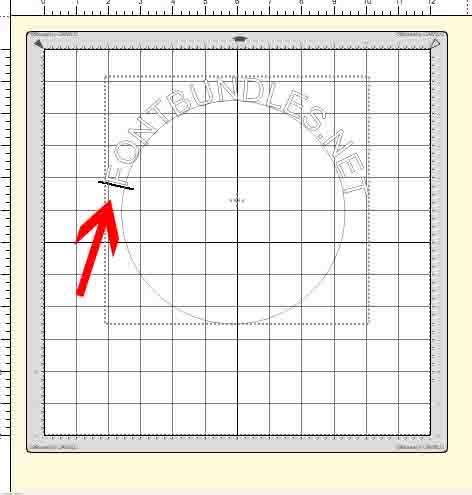
6- If you need to straighten up the text, add your cursor at the front and add spaces to move your text around the circle.
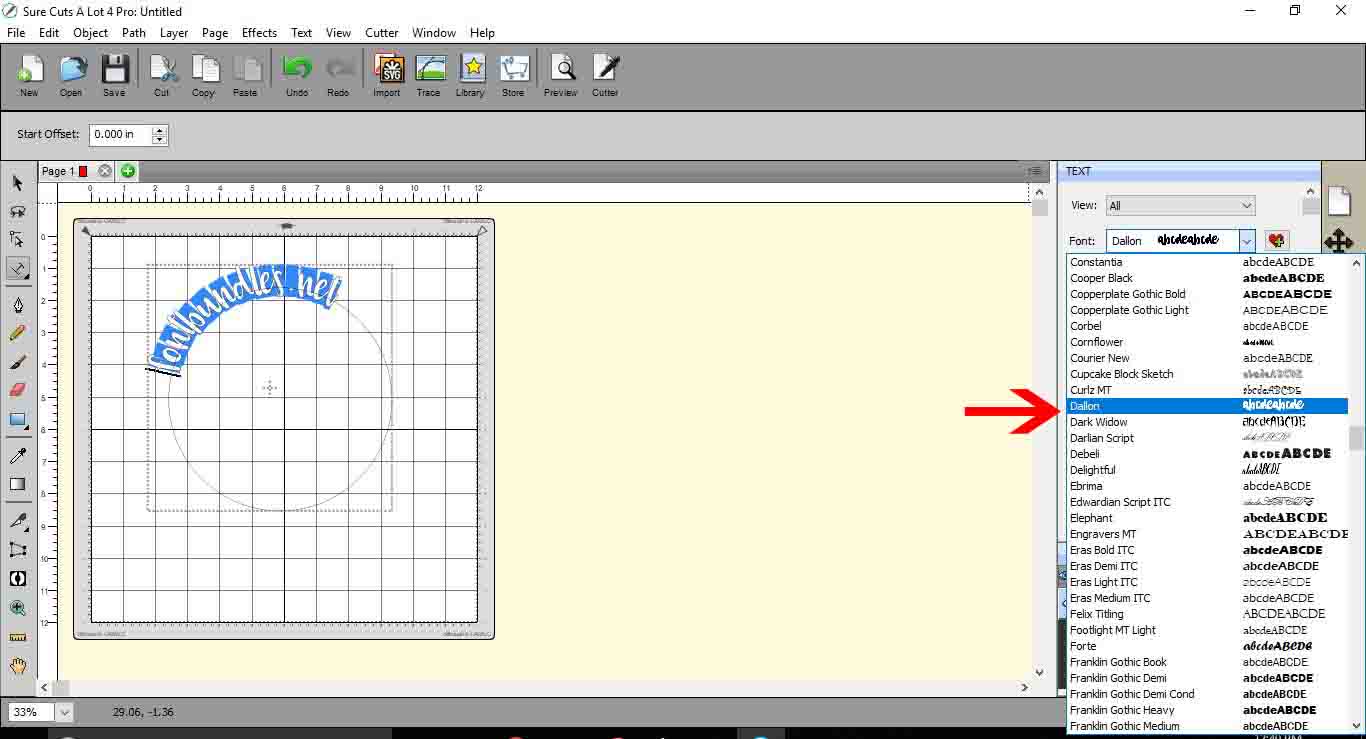
7- You can highlight the text, then select the font that you would like.
8- Once you are happy with the text, select it and right click. then select Path > object to path.
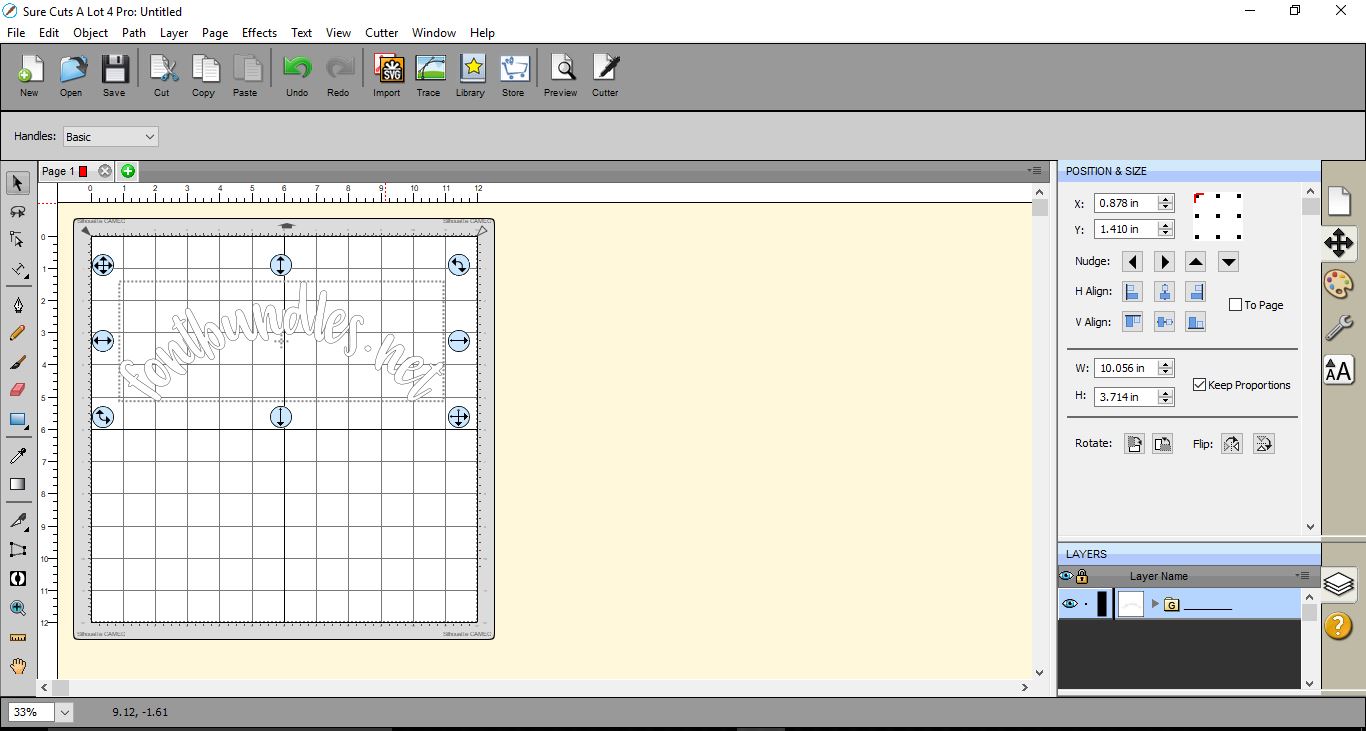
9- The circle will now be removed and your text is now curved.
1-Open SCAL4 software.

2- Go to the library and select a circle.
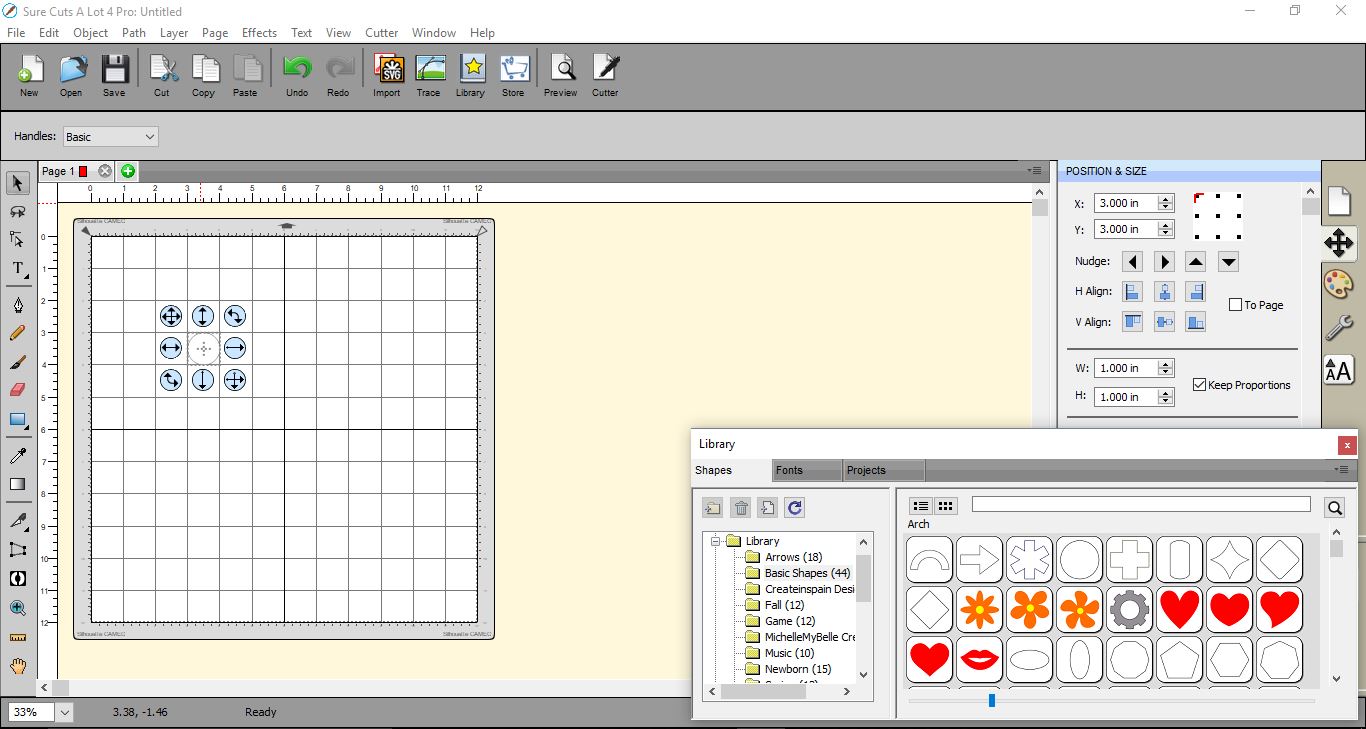
3- Adjust the size of the circle to the curve you are looking for.
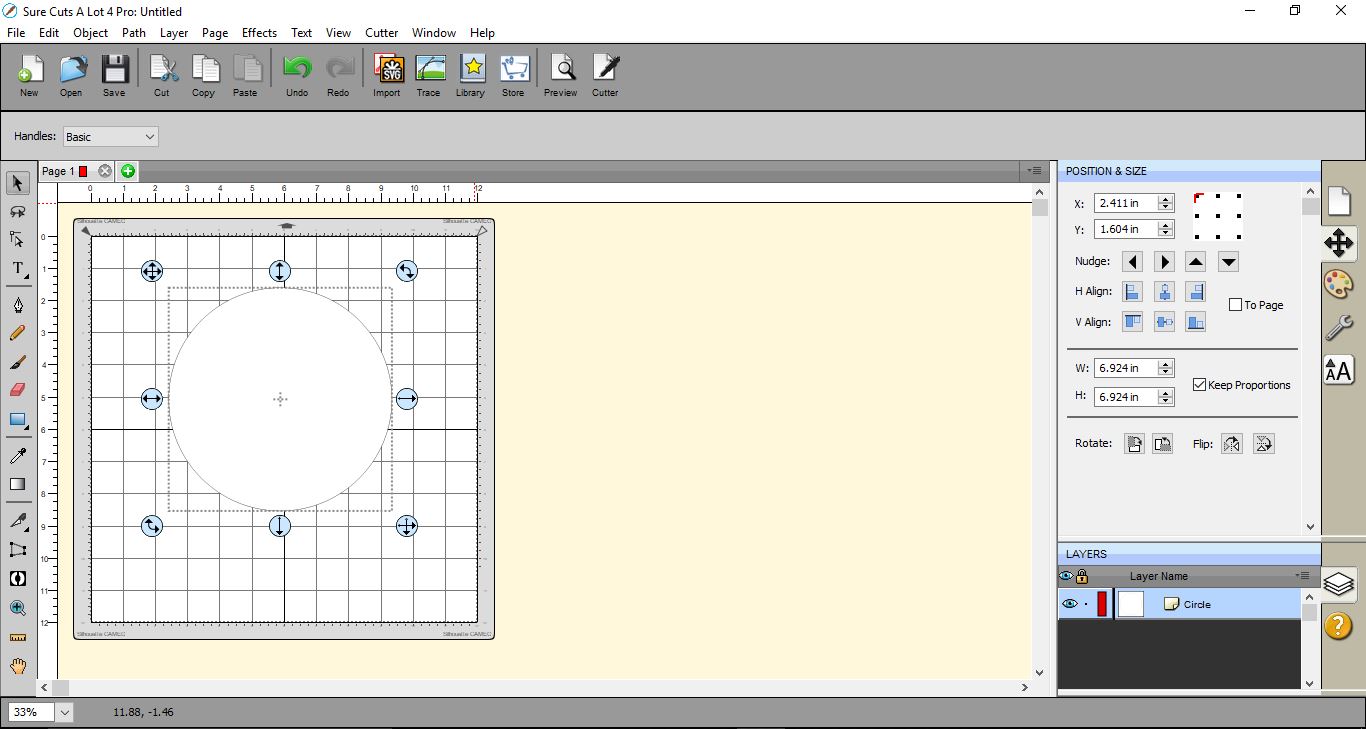
4- Click and hold on the text tool and then select the text on path option.
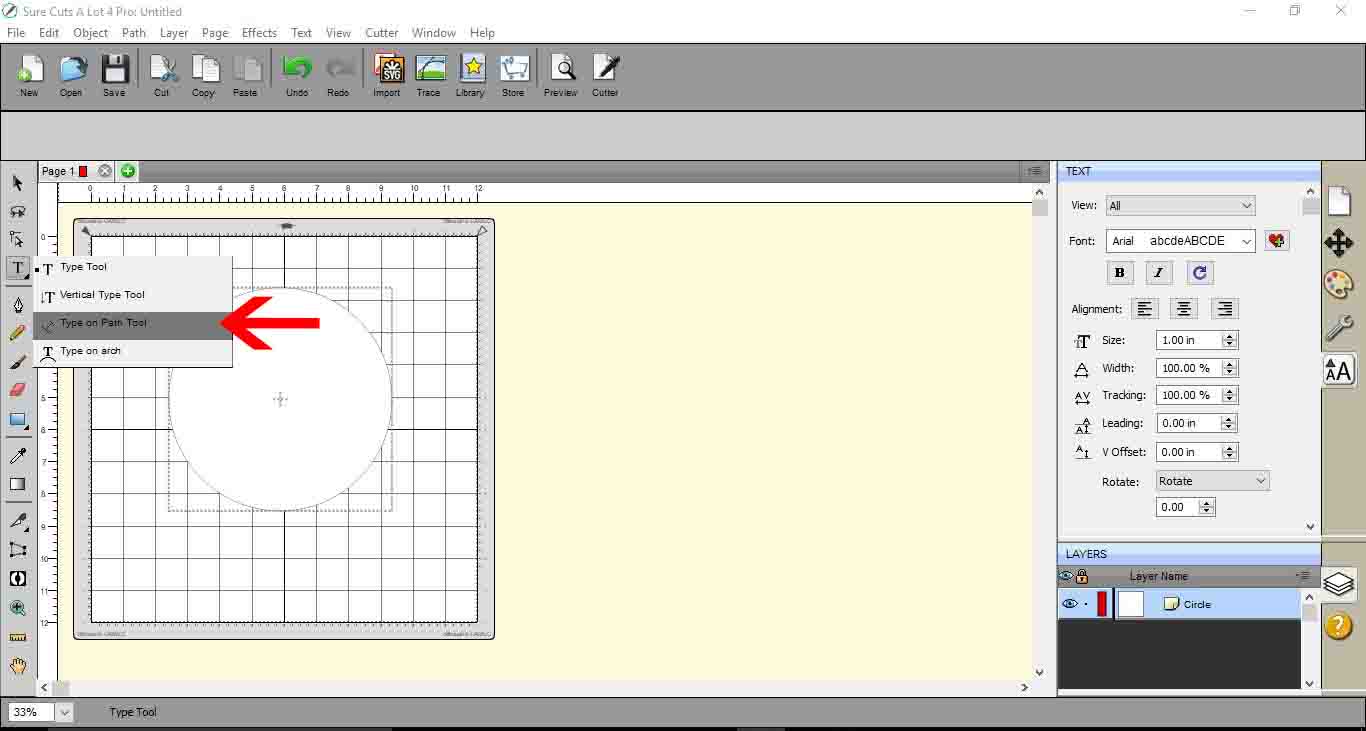
5- click your cursor on the circle and start typing.
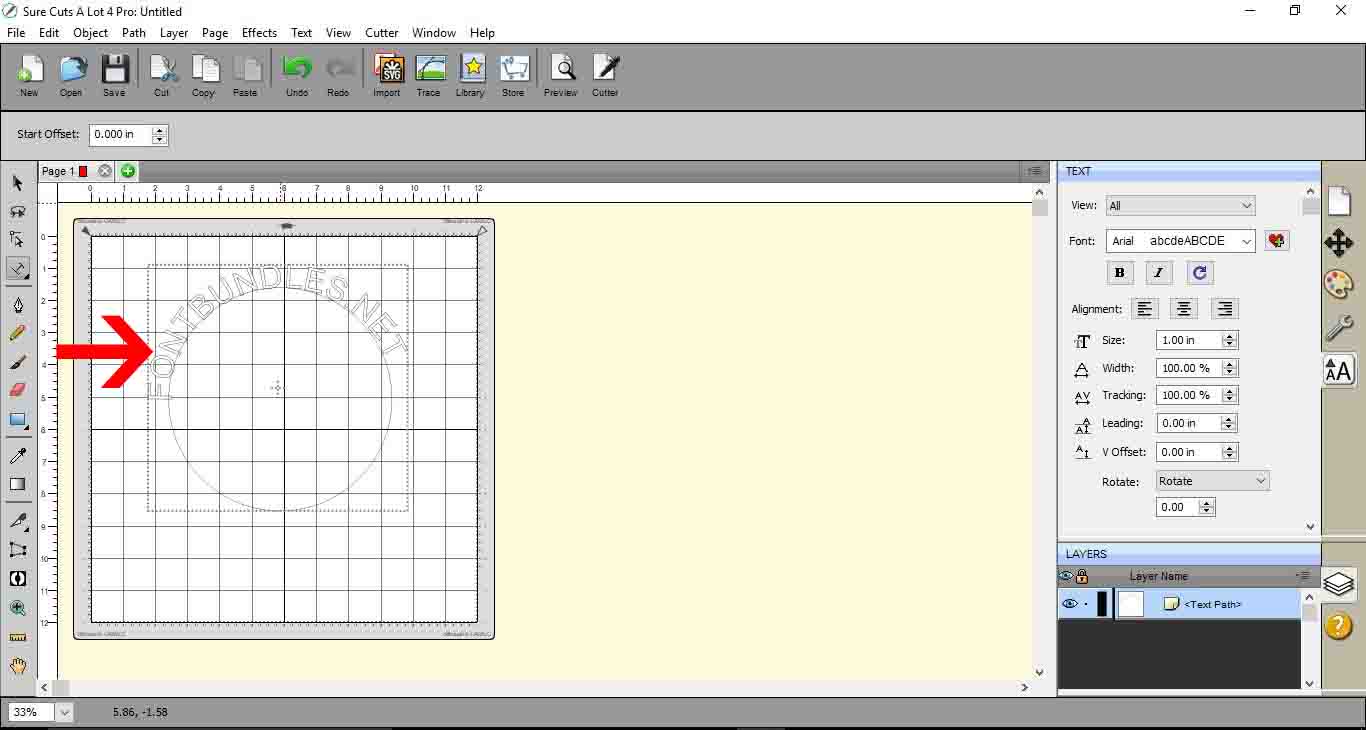
6- If you need to straighten up the text, add your cursor at the front and add spaces to move your text around the circle.
7- You can highlight the text, then select the font that you would like.
8- Once you are happy with the text, select it and right click. then select Path > object to path.
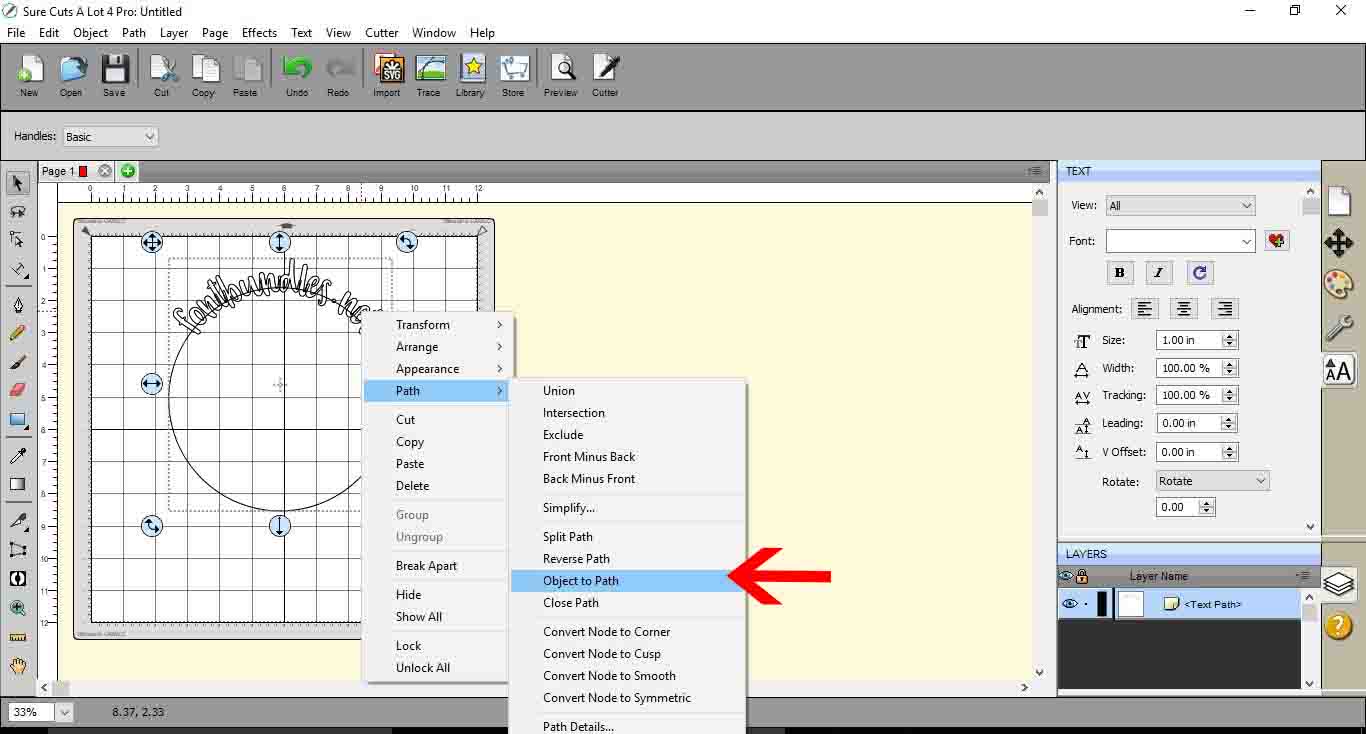
9- The circle will now be removed and your text is now curved.
Related Tutorials
SCAL Tutorials
Sure Cuts A Lot 4 Basics - The Text tool
SCAL Tutorials
Sure Cuts a Lot 4 Basics - Text Panel
SCAL Tutorials
Create a jigsaw in Sure Cuts a Lot 4
SCAL Tutorials
How to Create a Monogram in Sure Cuts A Lot 4
SCAL Tutorials