By Design Bundles
Scan N Cut Tutorials2 min
Using SVG files in Canvas Workspace.
* Formally Brother Scan and Cut Canvas
** Note That this new software is downloadable to your PC or laptop.
1- Log into canvas workspace.
2- To access a SVG file click on the icon.
3- Select your file. I am using Aeroplane SVG from designbundles.net
4- Your SVG will load into your design workspace.
5- You can use the Properties panel to change the fill color and the line colour.
6- You can also use the Edit panel to adjust the size of your SVG to suit your needs.
7- If you have a SVG with several different parts/colour you can sue the Layers panel to select specific parts of your SVG to change or move/delete.
** Note That this new software is downloadable to your PC or laptop.
1- Log into canvas workspace.
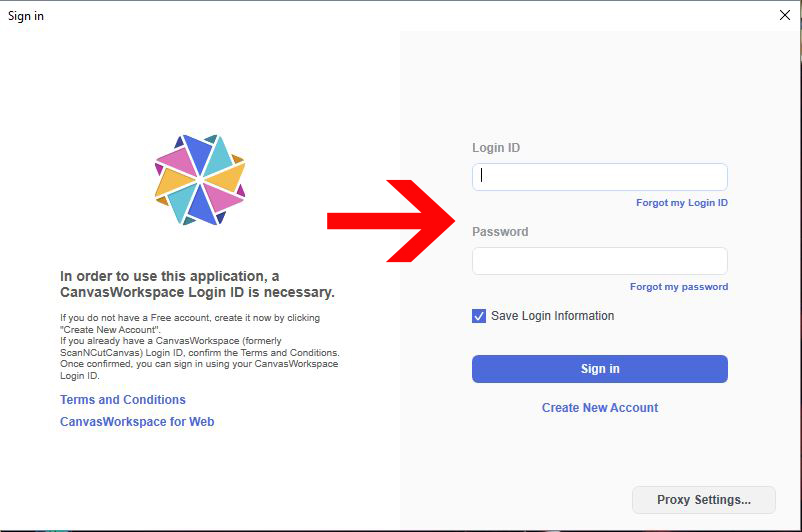
2- To access a SVG file click on the icon.

3- Select your file. I am using Aeroplane SVG from designbundles.net

4- Your SVG will load into your design workspace.

5- You can use the Properties panel to change the fill color and the line colour.

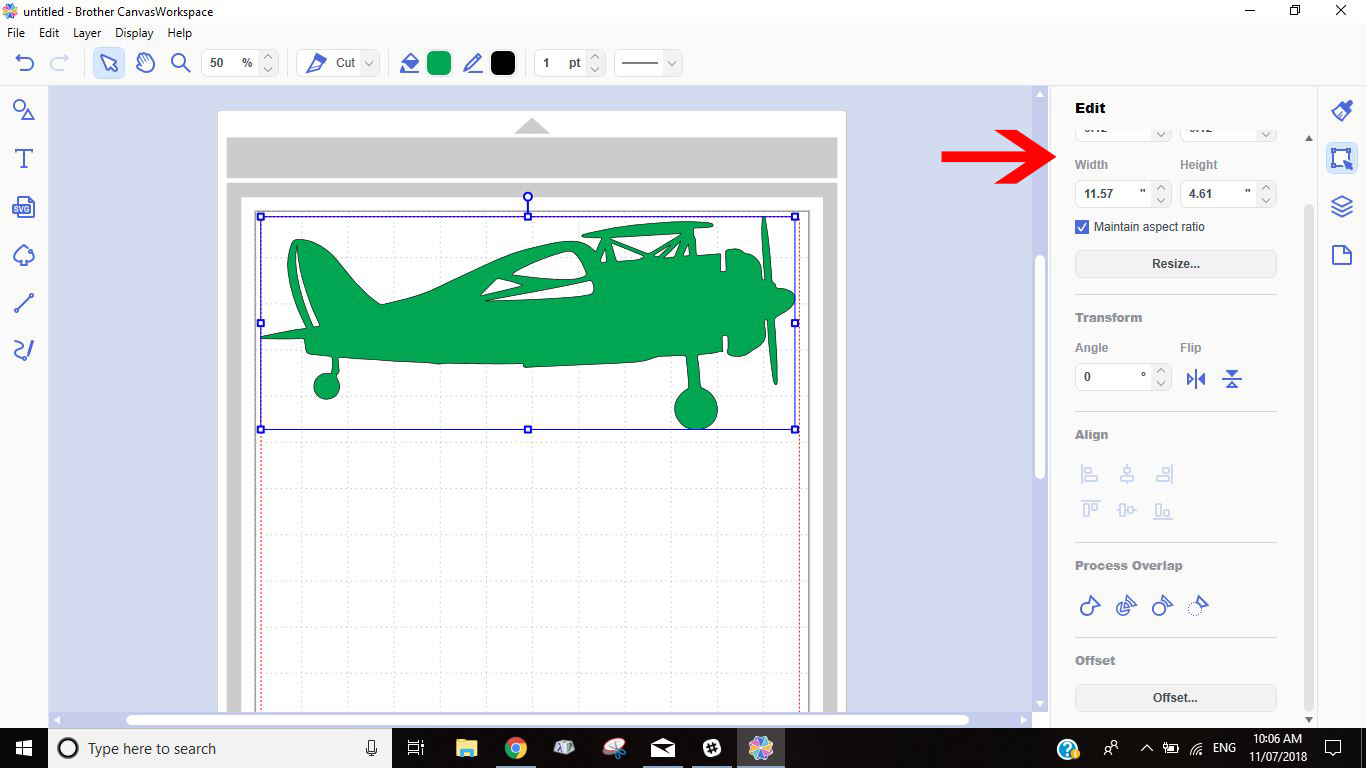
6- You can also use the Edit panel to adjust the size of your SVG to suit your needs.
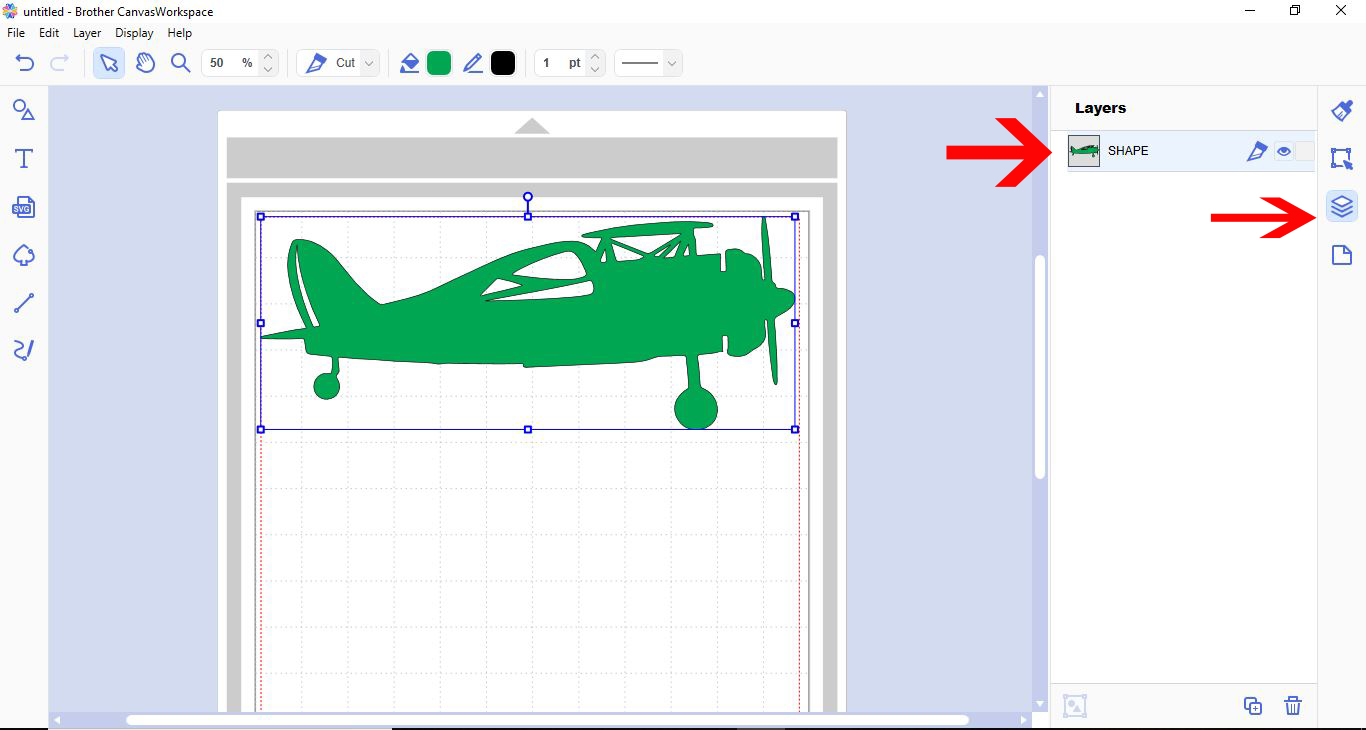
7- If you have a SVG with several different parts/colour you can sue the Layers panel to select specific parts of your SVG to change or move/delete.
Related Tutorials
Scan N Cut Tutorials
Using the foil quill with an SVG file in Scan and cut canvas workspace
Affinity Tutorials
How to Make SVG Files to Sell Using Affinity Designer
In this tutorial, learn how to make SVG files to sell using Affinity Designer
Scan N Cut Tutorials
Converting SVG to FCM cutting fine in Brother scan and cut canvas workspace
Scan N Cut Tutorials