


By Design Bundles
Scan N Cut Tutorials2 min
How to Flip Text and Images in Canvas Workspace
1-Open canvas workspace. Click on the text icon.
2- Click on the screen to start typing your text.
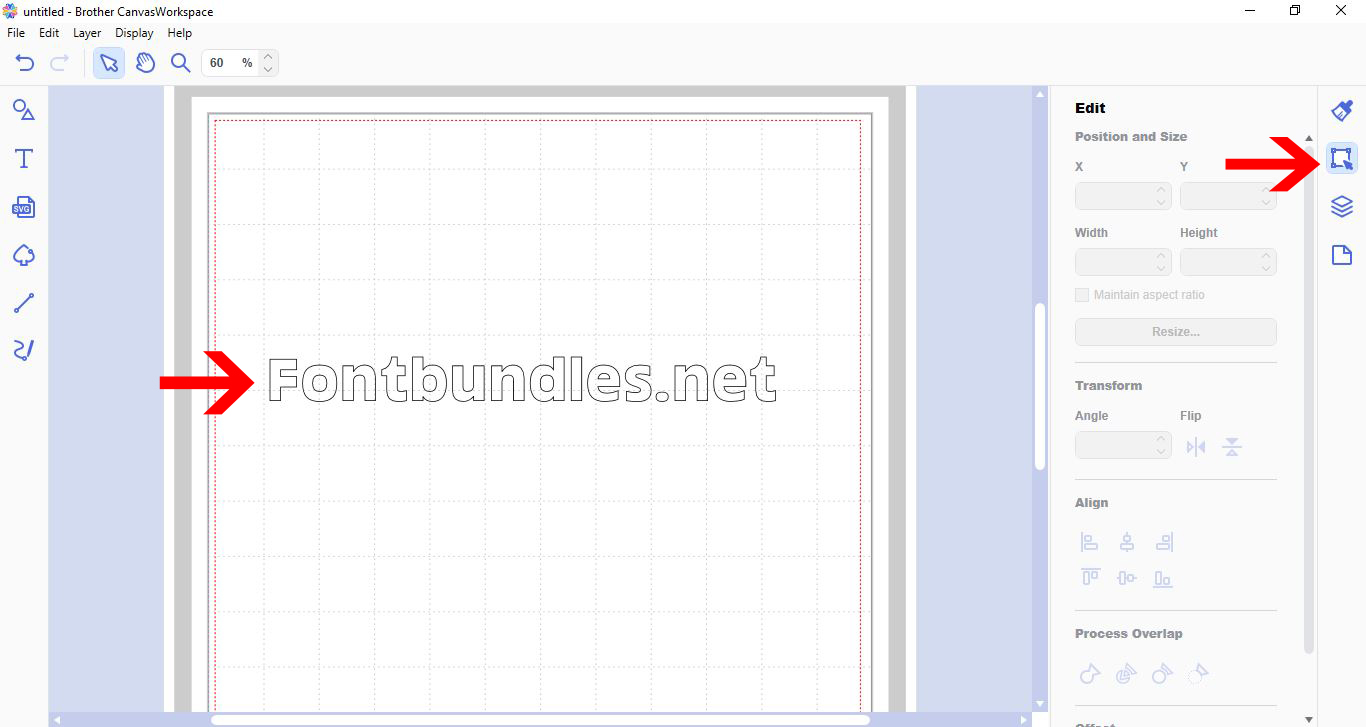
3- With your text typed and font selected, click the edit tool.
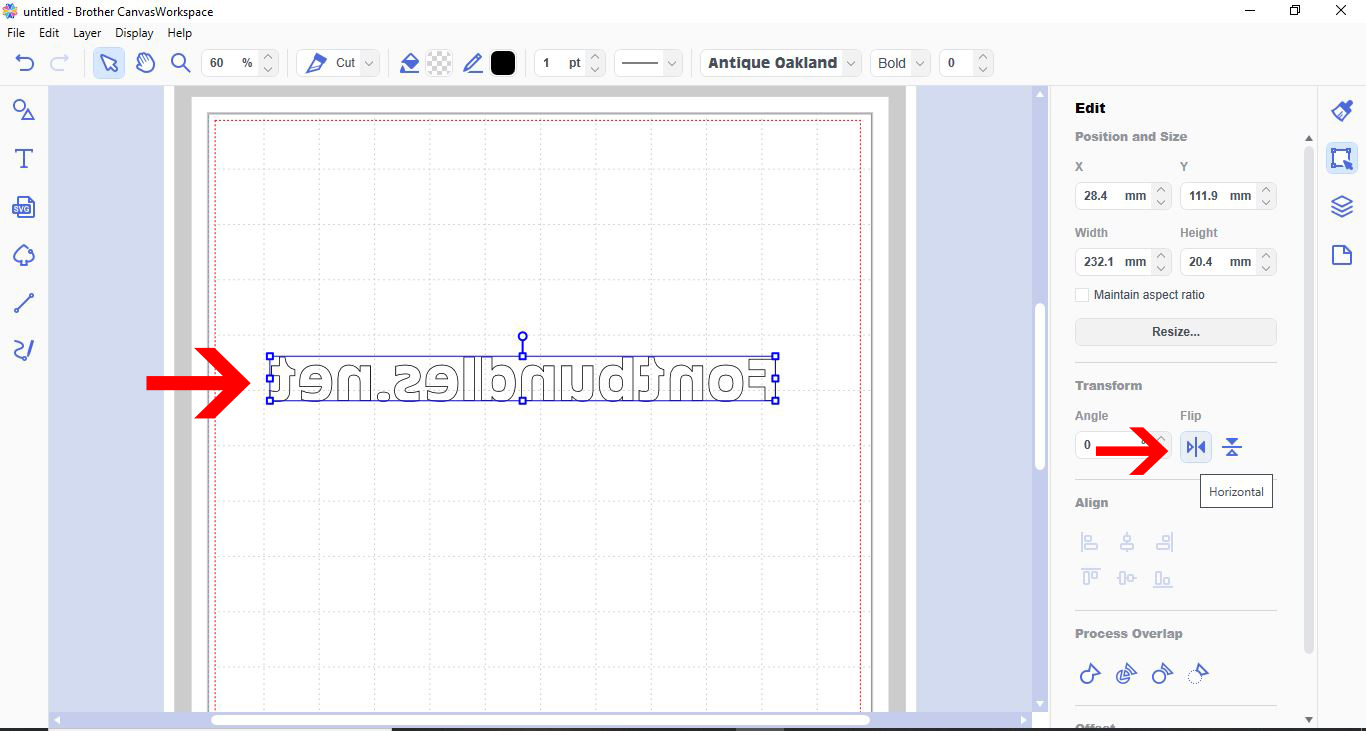
4- Select your text. In the transform selection you can click on the flip option. Flip horizontal.
5- You can also flip shapes and images. add a shape or import a SVG/image.
6- With the shape/image selected go to the transform section and select the flip option you would like.
7- The flip tool is perfect if you are choosing to create a design with heat transfer vinyl and your design needs to be cut in reverse to iron on a tee.
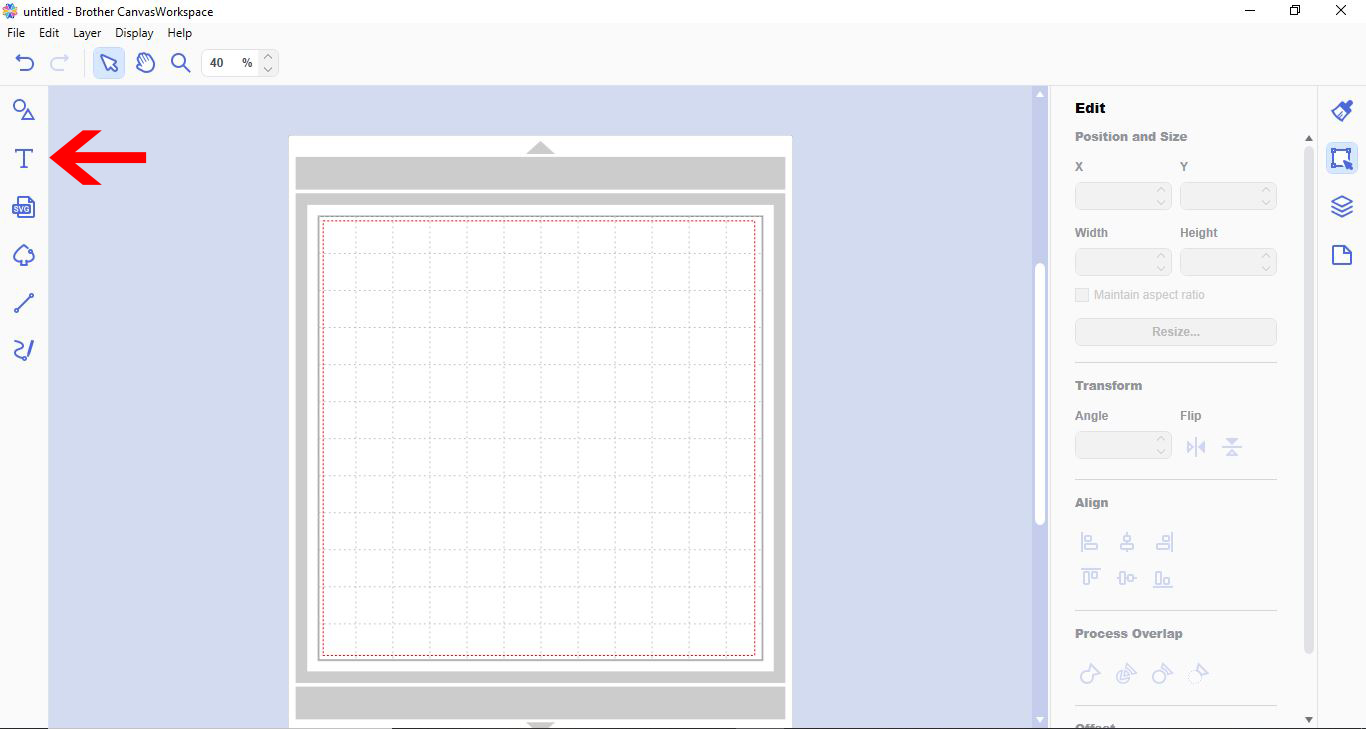
2- Click on the screen to start typing your text.
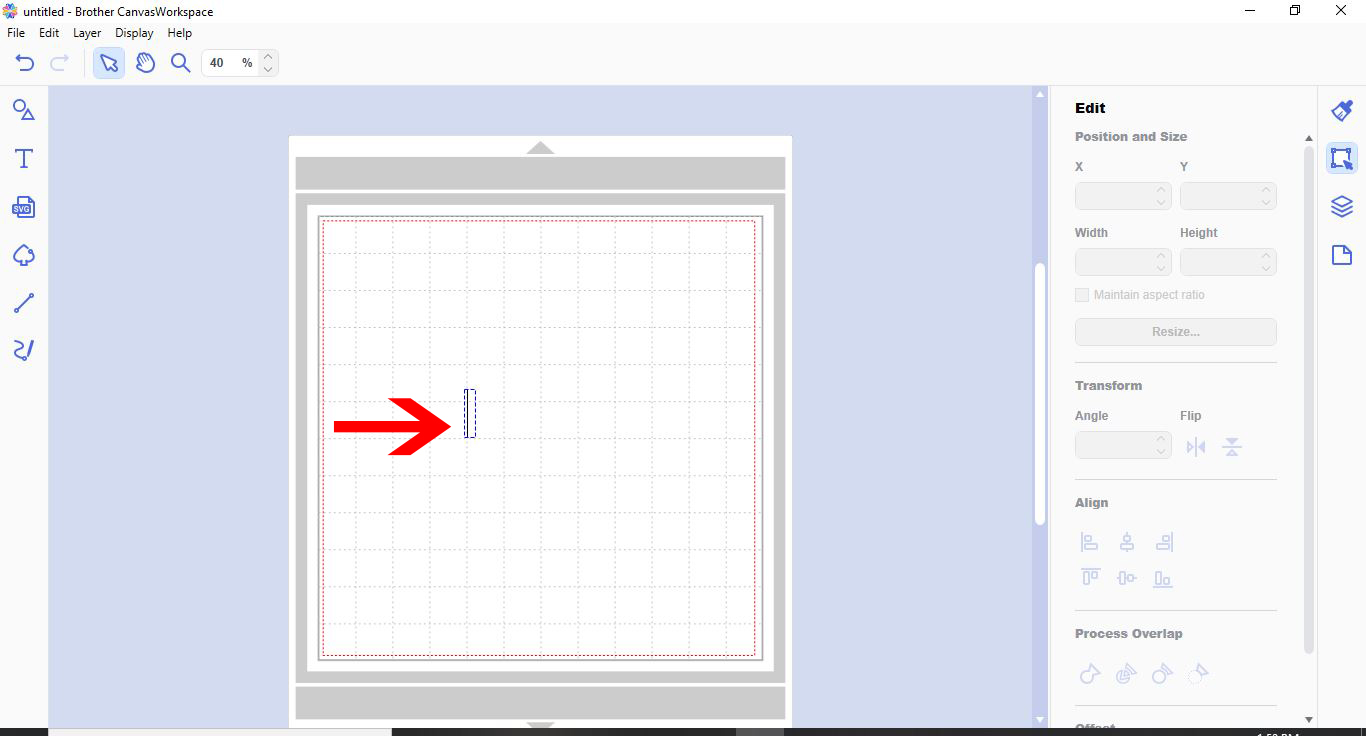
3- With your text typed and font selected, click the edit tool.
4- Select your text. In the transform selection you can click on the flip option. Flip horizontal.
5- You can also flip shapes and images. add a shape or import a SVG/image.
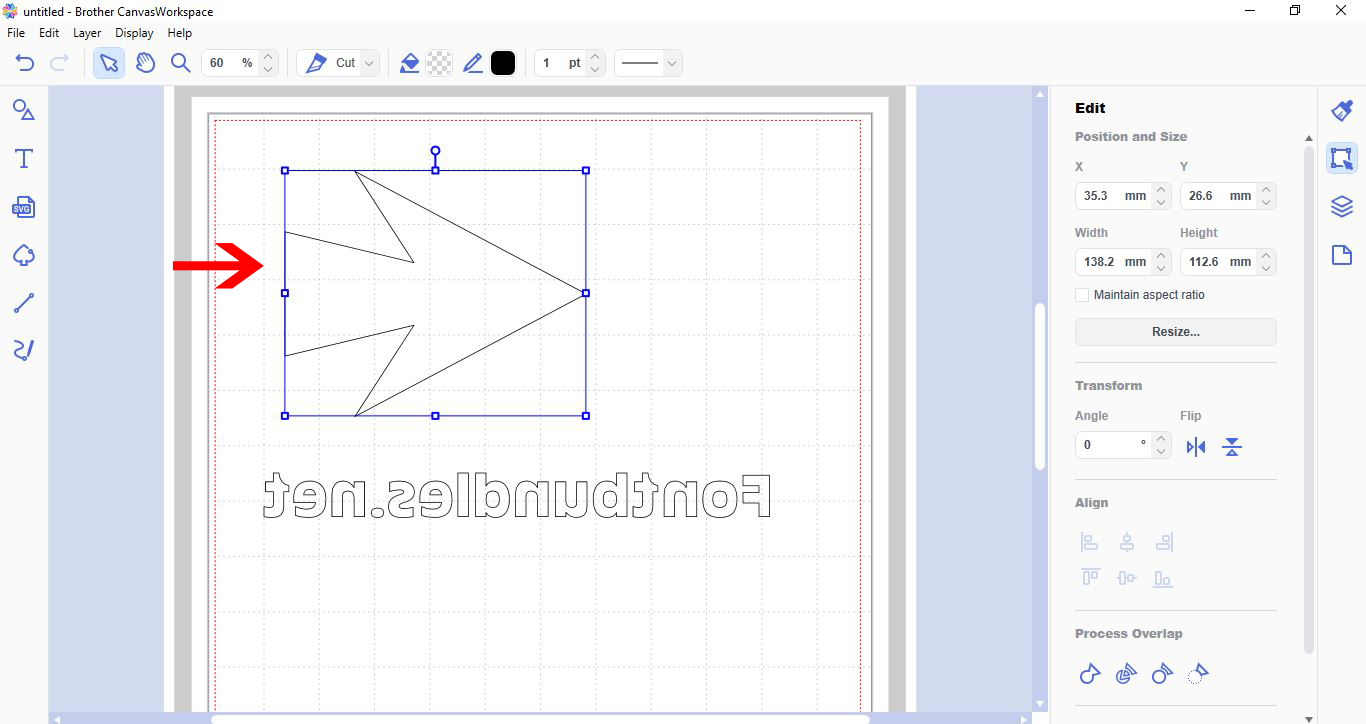
6- With the shape/image selected go to the transform section and select the flip option you would like.
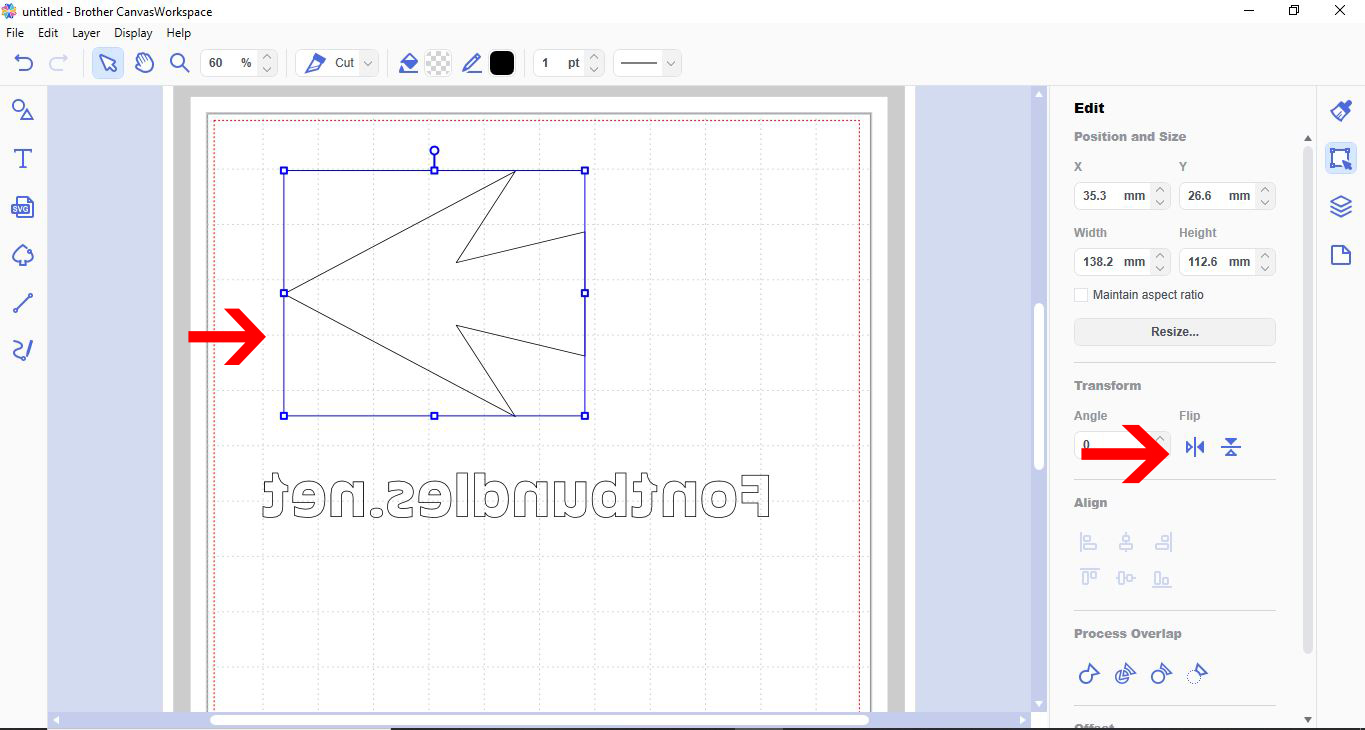
7- The flip tool is perfect if you are choosing to create a design with heat transfer vinyl and your design needs to be cut in reverse to iron on a tee.
Related Tutorials
Scan N Cut Tutorials
How to create curved text in brother scan and cut canvas workspace
Learn how to curve text in Brother Scan N Cut
Scan N Cut Tutorials
Two ways to weld text in Brother scan and cut canvas workspace
Scan N Cut Tutorials
How to Fill text in Brother scan and cut canvas workspace with the foil quill
Scan N Cut Tutorials
Adjusting objects and text using the node function in brother scan and cut canvas workspace
Scan N Cut Tutorials
How to foil basic text with Brother scan and cut canvas workspace
Scan N Cut Tutorials


