


By Design Bundles
Photoshop Tutorials2 min
How to create a photo frame within a photo in Photoshop
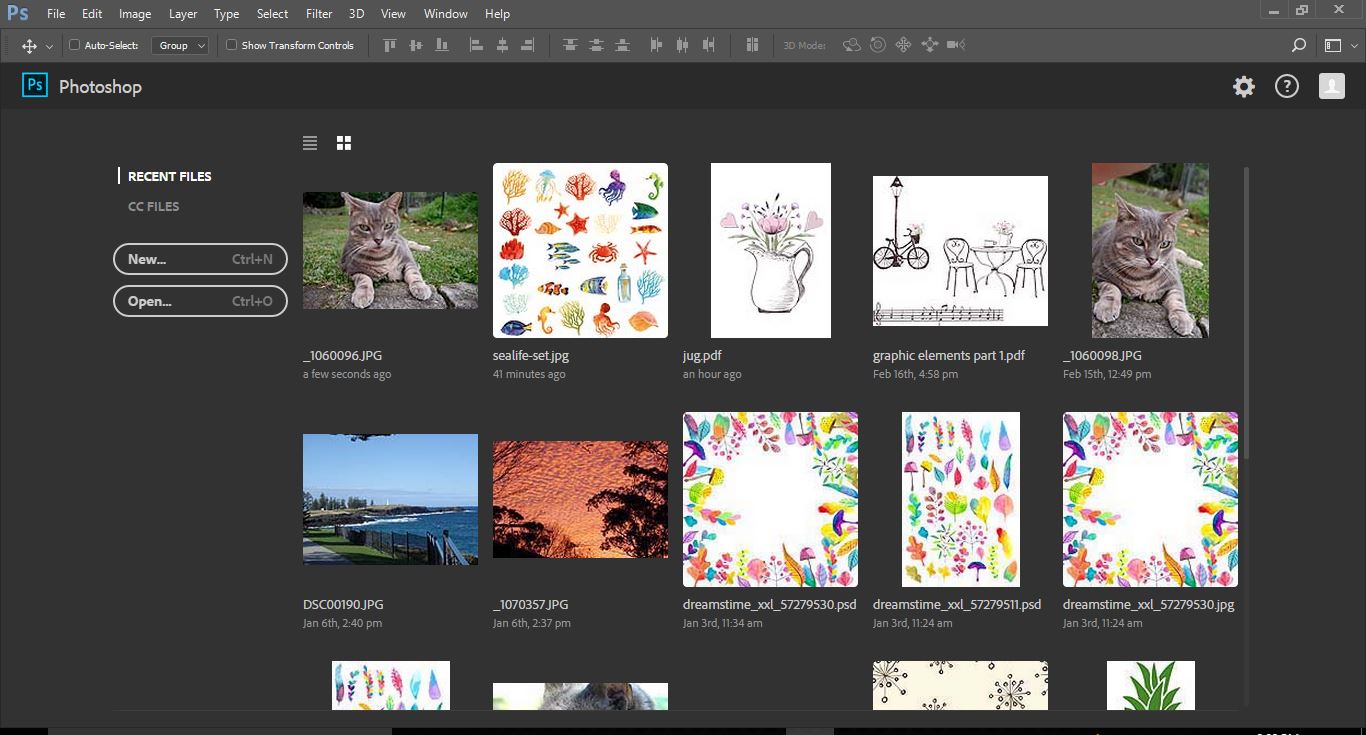
1- Open Photoshop and insert your photo.
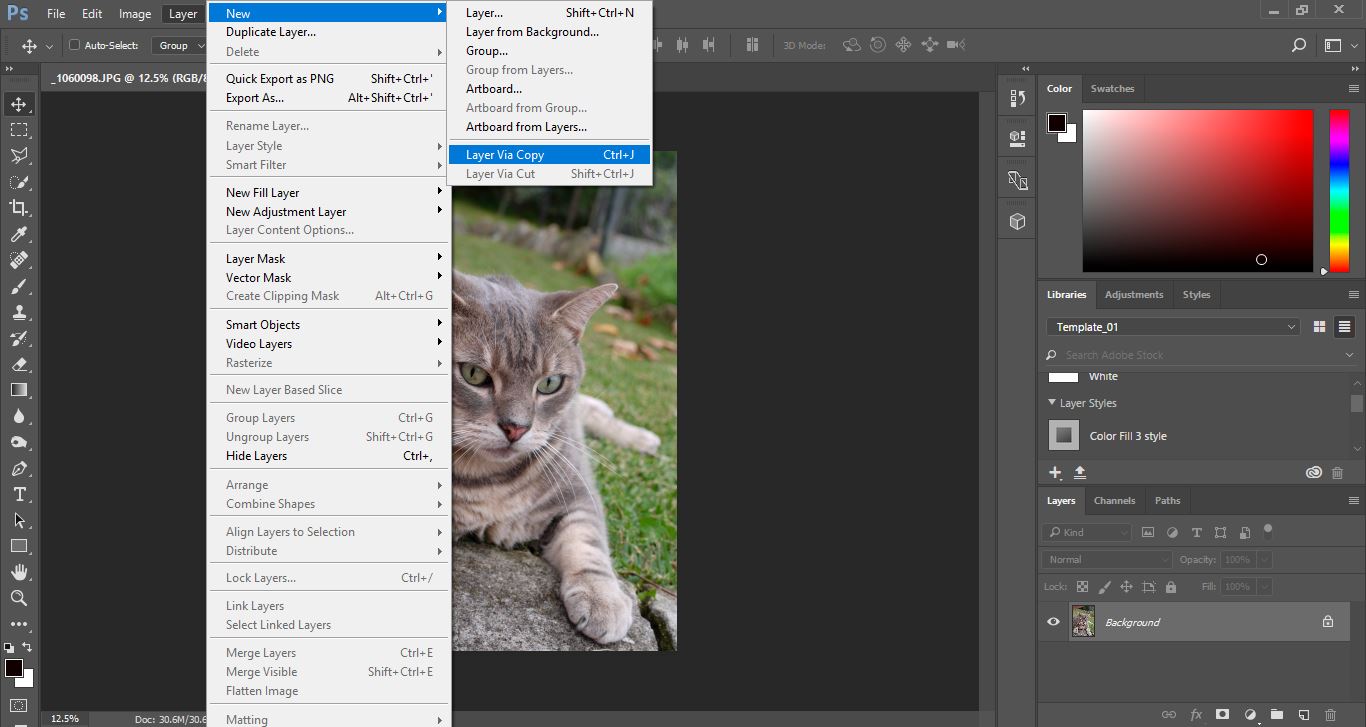
2- Create a new layer. Layer > New > Layer via Copy.
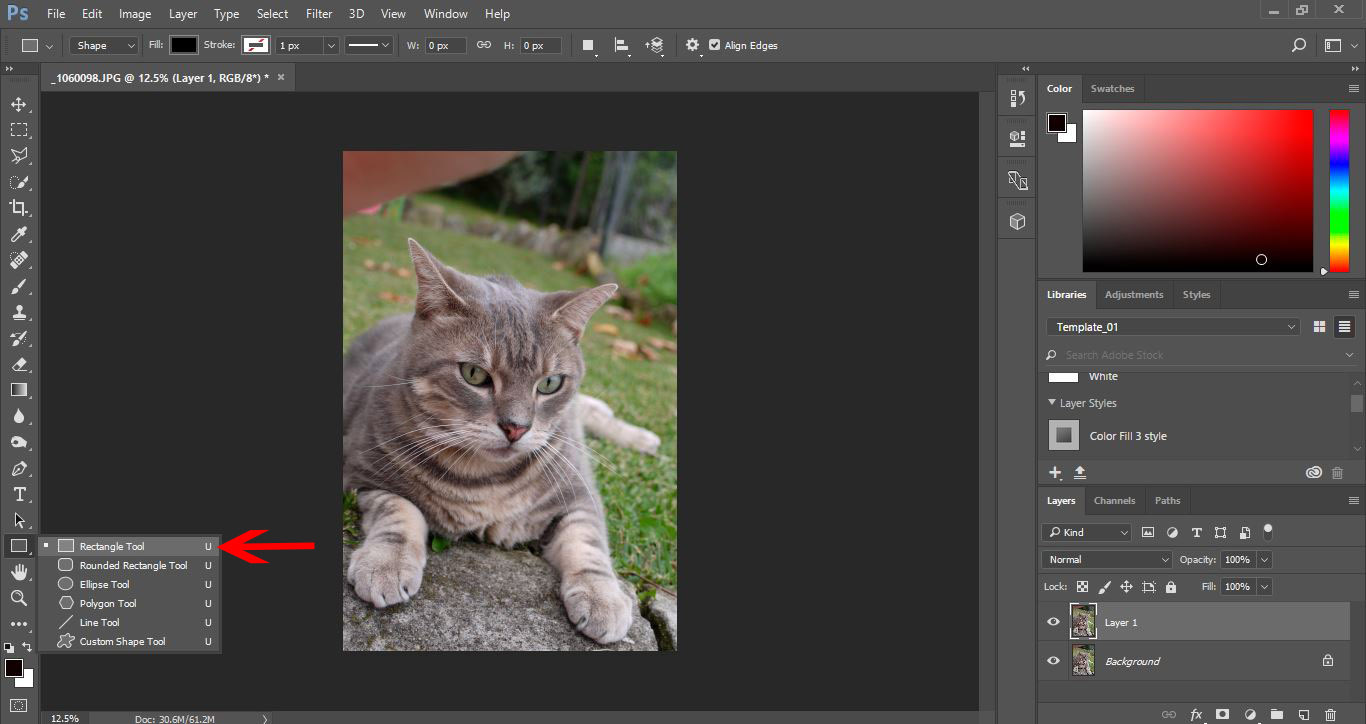
3- Select the rectangle tool.
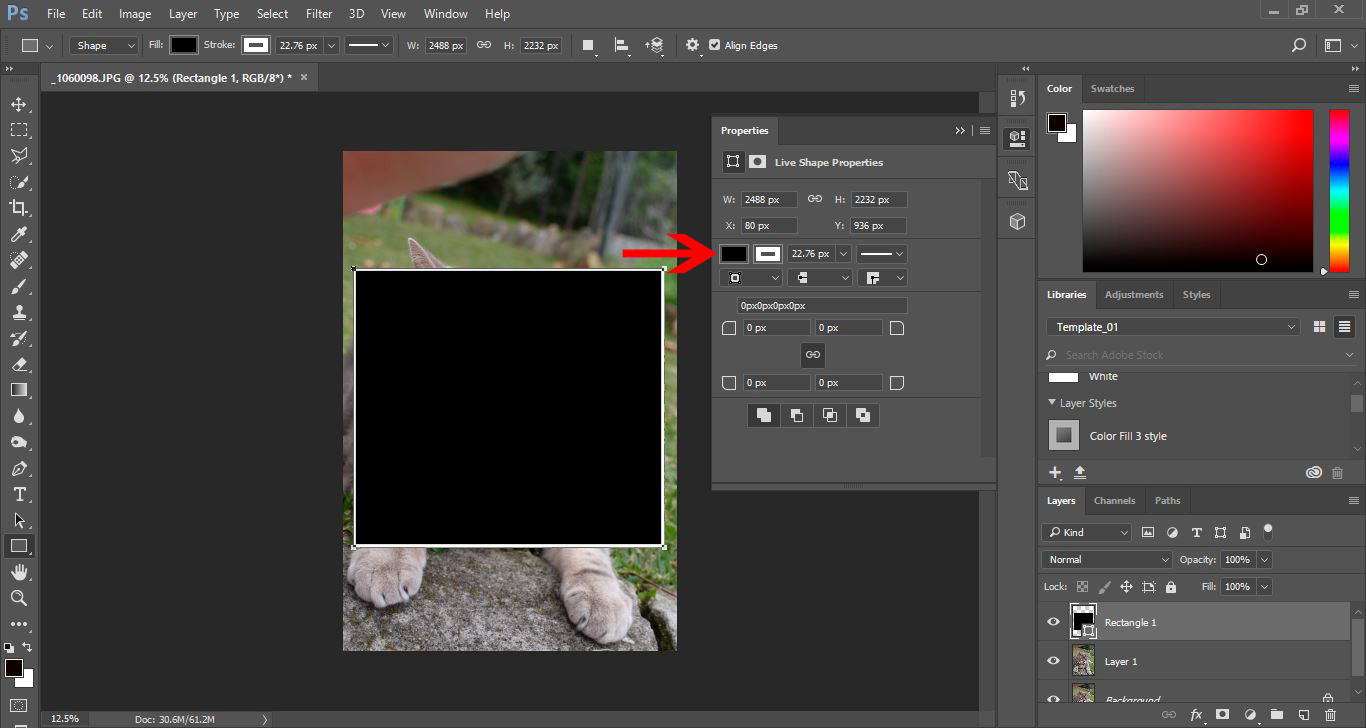
4- Create a rectangle inside your picture.
5- Drag the rectangle layer below layer 1.
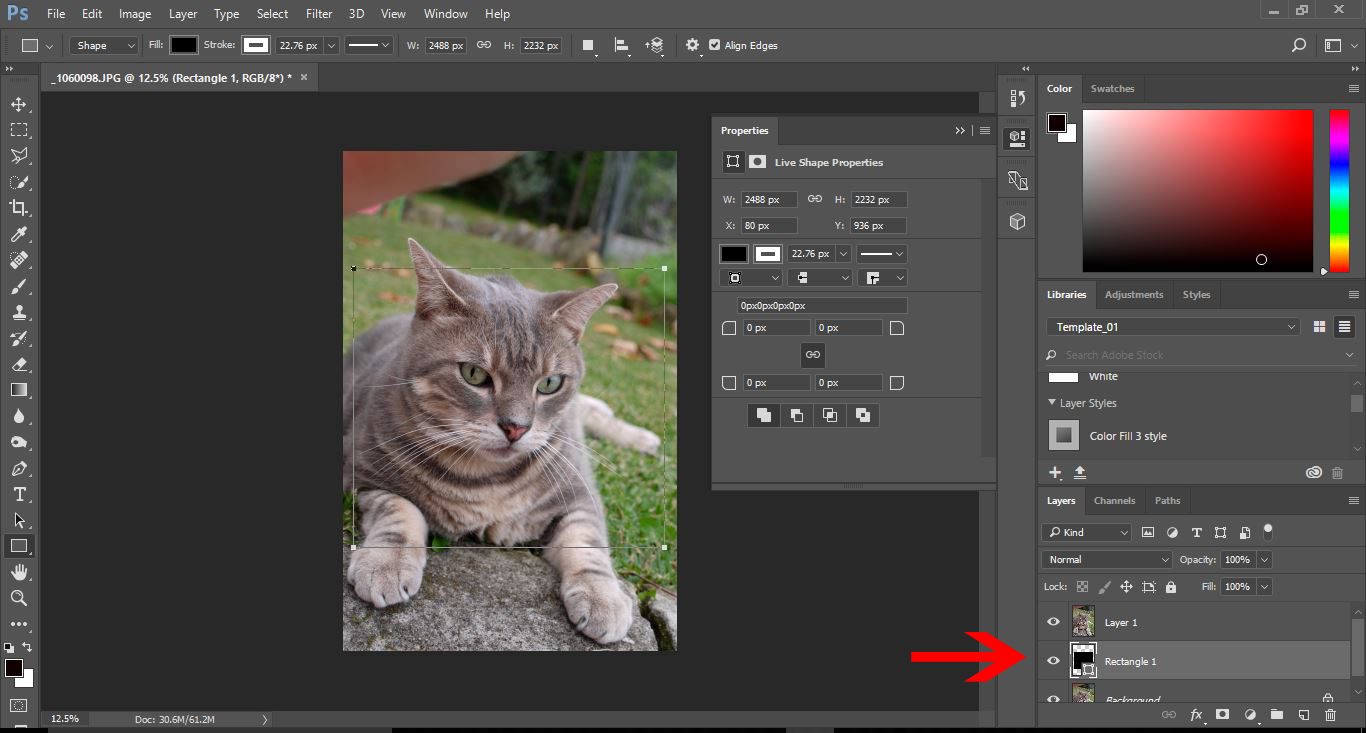
6-With layer 1 selected, create a clipping mask.
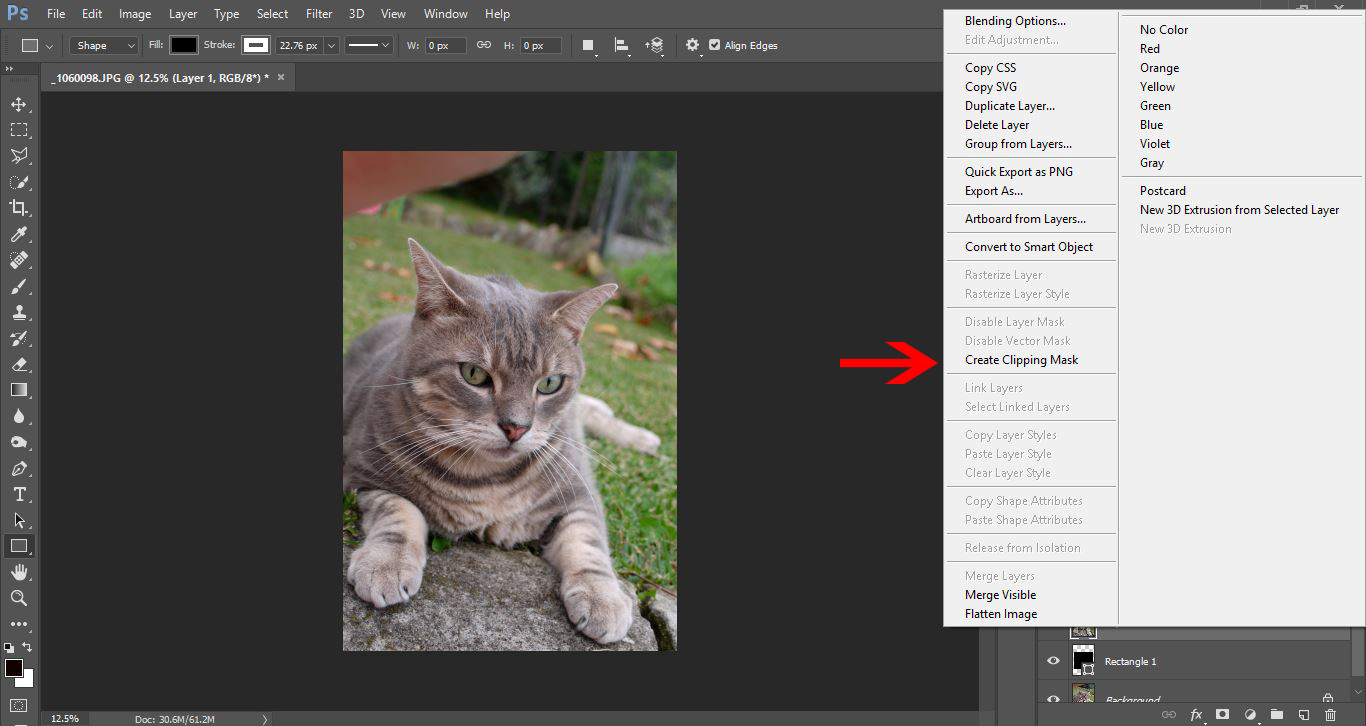
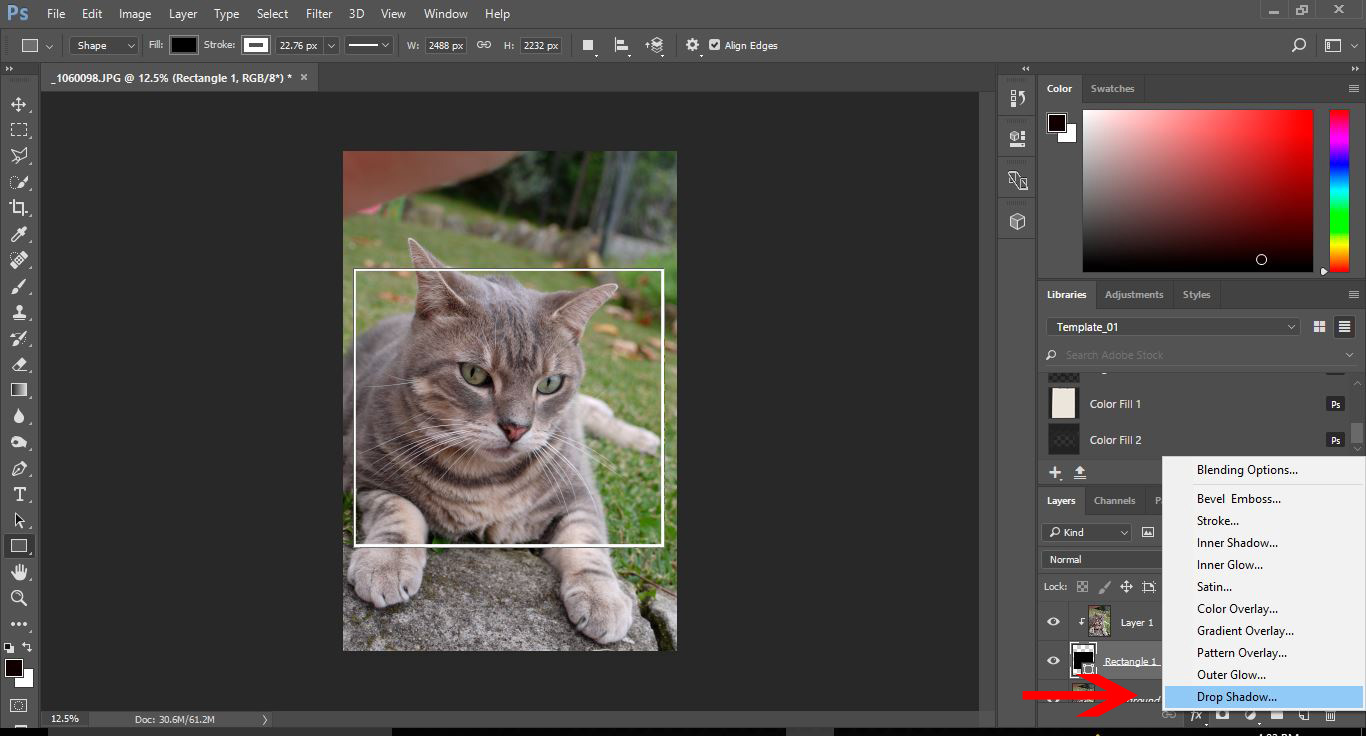
7- Select the rectangle layer and add click on the Fx icon and select drop shadow.
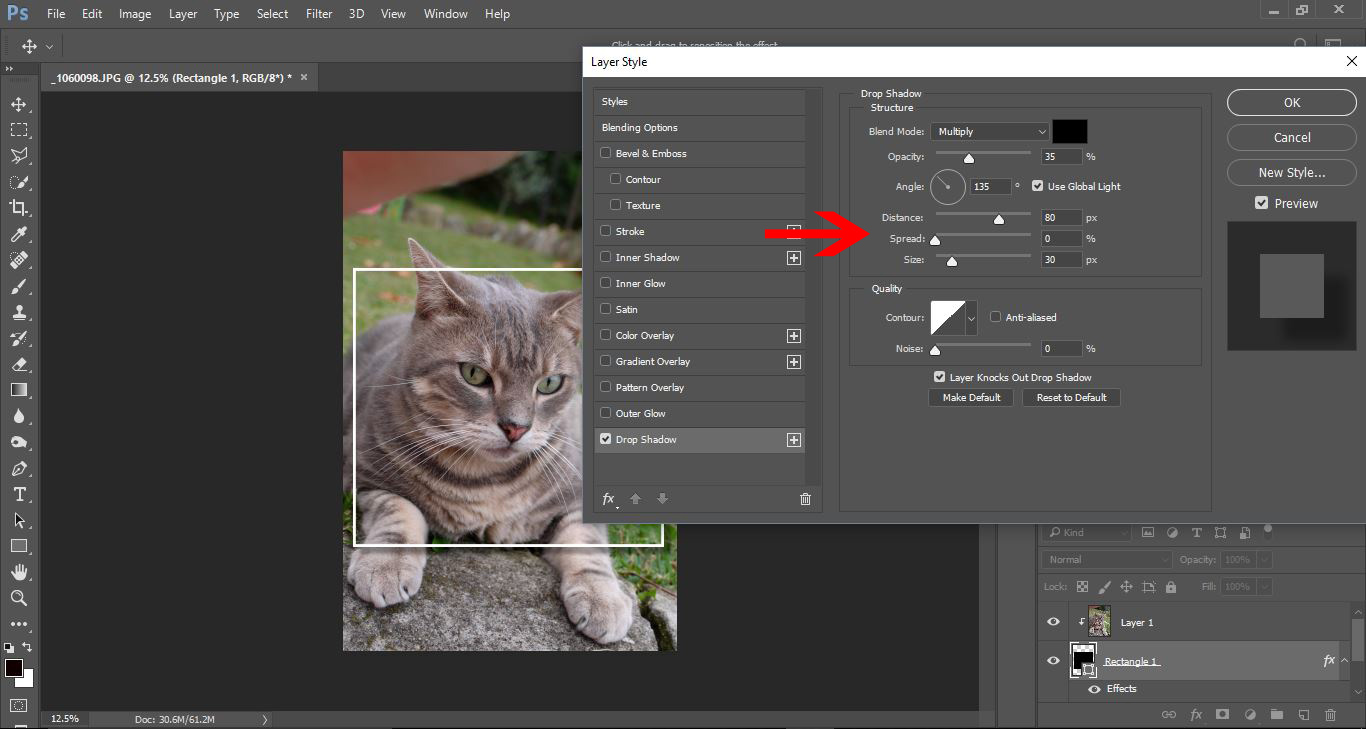
8-Adjust the settings to adjust the drop shadow.
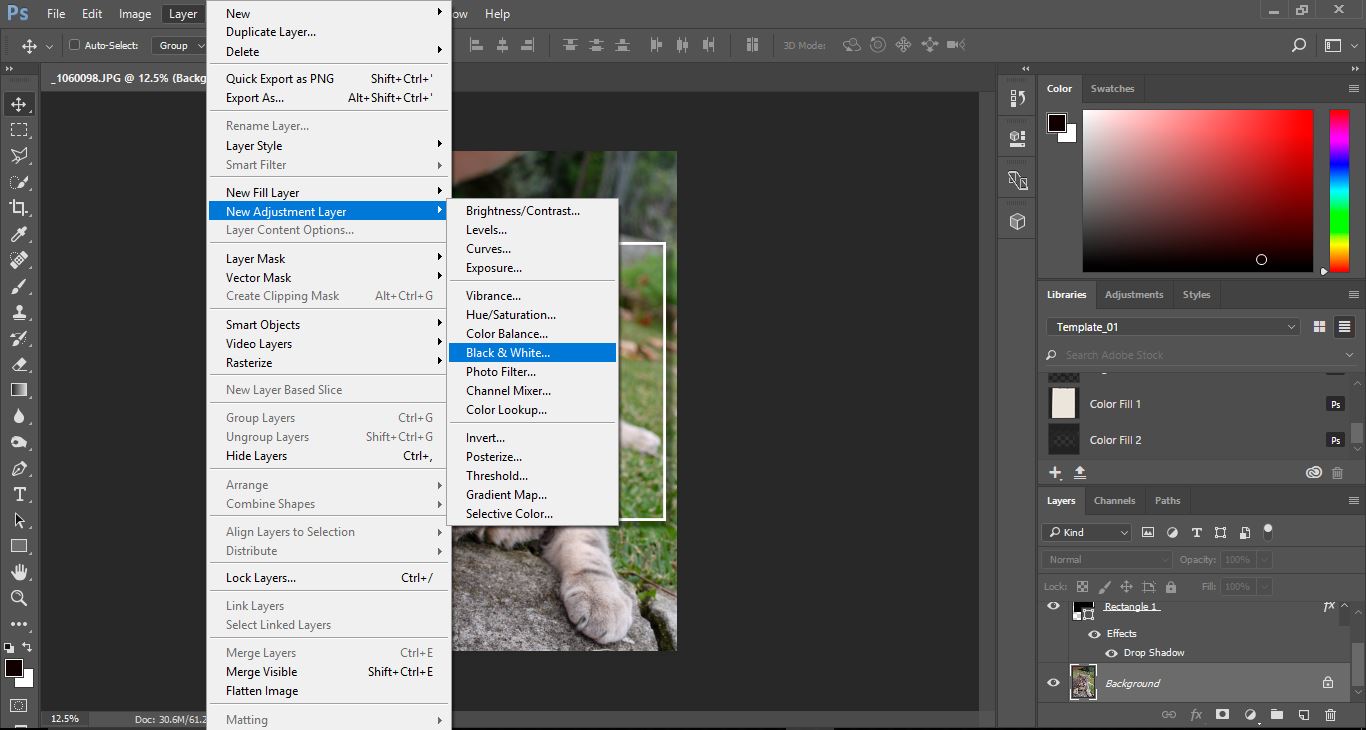
9- Select the background layer thenuse Layer > New Adjustment layer > Black and white.
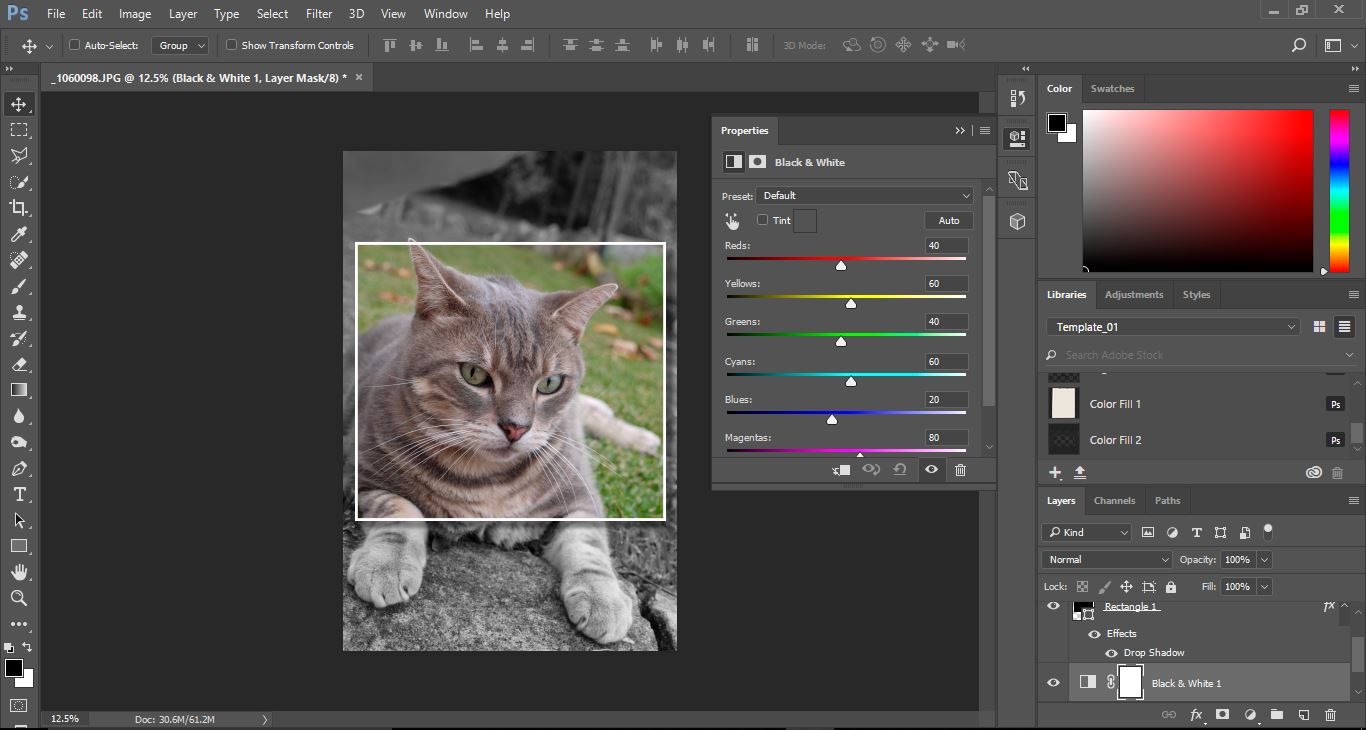
10- This will now create the background to black and white. You can adjust the saturation and contrast to you needs.
Related Tutorials
DesignScape Tutorials
How to Create a Reusable Photo Frame Using Pixascape and DesignScape
Learn how to make a resuable photo frame using Pixascape and DesignScape in just a few steps.
Scan N Cut Tutorials
How to create a die cut photo frame with text in brother scan and cut canvas workspace
Photoshop Tutorials
How to Create Speech Bubbles in Photoshop
Learn how to create and edit fun speech bubbles in Photoshop using custom shapes.
Photoshop Tutorials
How to Create a Dusty Texture in Photoshop
Learn how to create a dust texture in Photoshop with this step by step tutorial.
Photoshop Tutorials
How to Create Distressed Edges in Photoshop
Learn how to create distressed edges from scratch in Photoshop using an eraser brush.
Photoshop Tutorials
How to Create a Holographic Text Effect in Photoshop
Discover how to create a holographic text effect in Photoshop with this step by step tutorial.


